
✔️ Technology tools are compatible across different operating systems and devices (e.g.: desktop computers, laptops, tablets, smartphones), or a warning is provided where this might not be possible.
Review These Explanations
Ensuring the compatibility of technology tools across diverse operating systems and devices, such 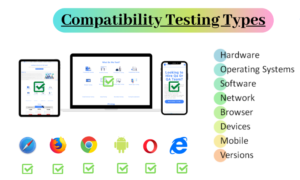 as desktop computers, laptops, tablets, and smartphones, is essential for creating a seamless and inclusive learning experience.
Compatibility offers users flexibility, enabling access to educational resources on their chosen devices and operating systems. This approach minimizes technical challenges, fosters consistent user experiences, and streamlines resource management for instructors. Moreover, compatibility enhances collaboration, reduces costs for institutions, and safeguards educational technology investments against future advancements, ensuring adaptability to emerging tools and technologies. In essence, it fosters a more accessible, user-friendly, and resilient educational technology ecosystem.
Refresh Your Course with These Ideas
General Suggestions:
- Develop comprehensive user guides with videos and images illustrating tool usage on different devices.
- Gain clear understanding of the LMS platform and software to be used in the course.
- Implement a system for users to report compatibility issues, encouraging continuous improvement.
- Work closely with IT departments to stay informed about updates and developments in operating systems.
- Provide student training emphasizing the use of tools across diverse devices and operating systems.
- Embed links to the compatibility support system in activity or assignment instructions involving specific technologies.
This ensures immediate access to assistance relevant to the compatibility of the task. - Keep tools up to date to align with the latest developments in operating systems and devices.
- Universally design tasks with collaborative features within tools that operate seamlessly across devices.
Specific Suggestions:
(Sunahov, 2016)
When designing a course for diverse screen sizes, it is essential that:
- Dynamic layouts optimize space for elements.
- Device features are automatically detected, applying appropriate styles.
- Images are scalable for compatibility with the current device.
- Links, buttons, and characters are touch-friendly.
- Elements respond to device-friendly motions, like drag and drop for iPads.
- Content is strategically placed for usability; for example, dialogue choices
are positioned at the bottom for easy access regardless of handedness.
Example
Student Accessibility based on Device
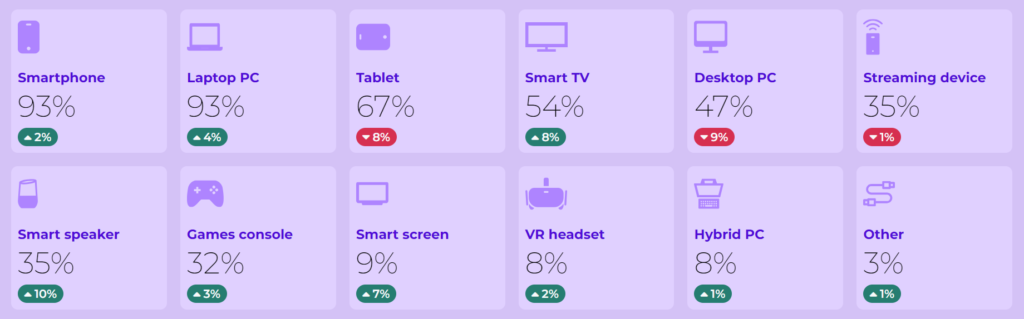
Image from: Student Device Usage Report 2022
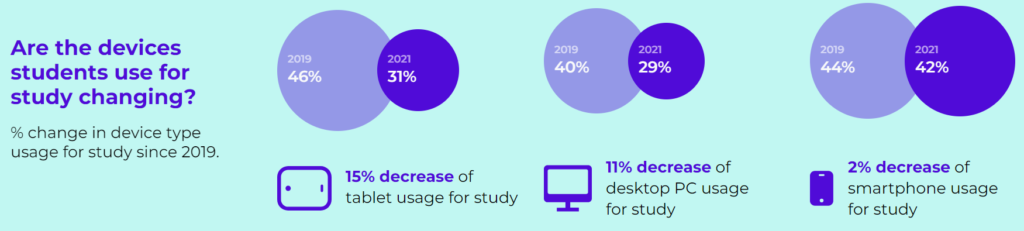
Image from: Student Device Usage Report 2022
Learning Activities on Devices
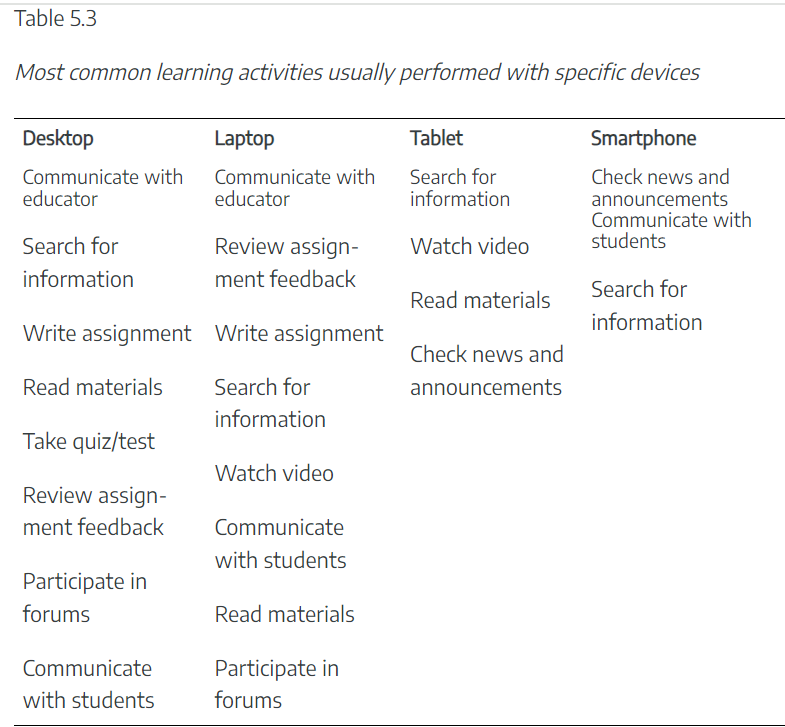
Krull & Duart (2017)
References:
Krull , G., & Duart, J. (2017). Moving to seamless learning: A framework for learning using multiple devices. IAmLearning Mobilizing and Supporting Educator Practice. https://pressbooks.pub/iamlearning/chapter/moving-to-seamless-learning-a-framework-for-learning-using-multiple-devices/
P., A. (2020). Compatibility testing: Types, process, tools and benefits. LinkedIn. https://www.linkedin.com/pulse/compatibility-testing-types-process-tools-benefits-avanish-pandey
Suhanov, X. (2018). Multiple devices in e-learning. LinkedIn. https://www.linkedin.com/pulse/multiple-devices-e-learning-xenia-suhanova
- Faimau, G., Tlhowe, K., & Tlhaolang, O. (2022). Smartphone use, experience of learning environment, and academic performance among university students: A descriptive appraisal. Advances in Human-Computer Interaction, 2022, 1–11. https://doi.org/10.1155/2022/2617596
- Krull, G. (2017). Supporting seamless learning: Students’ use of multiple devices in open and distance universities. https://core.ac.uk/download/pdf/147047349.pdf
- Krull , G., & Duart, J. (2017, October 30). Moving to seamless learning: A framework for learning using multiple devices. IAmLearning Mobilizing and Supporting Educator Practice. https://pressbooks.pub/iamlearning/chapter/moving-to-seamless-learning-a-framework-for-learning-using-multiple-devices/