
✔️ “Alt” tags are provided on images (this excludes any decorative images).
Review These Explanations

Screen readers, crucial for learners with visual impairments, face a challenge when interpreting images, rendering them inaccessible. To address this, including ALT (alternative) text for images is imperative, offering descriptive content that enables comprehension. While ALT text suffices for some images, complex visuals like charts or diagrams demand more detailed narratives to aid visually impaired learners. In the realm of online education, institutions, mandated by the Americans with Disabilities Act, must prioritize compliance, emphasizing the need for accessible course delivery. Notably, in adherence to accessibility guidelines, closed captioning in online courses benefits hearing-impaired students and supports non-native English language learners grappling with intricate terminology. The provision of “Alt” tags on images proves vital for inclusivity, serving as alternative text that aids individuals using screen readers in navigating and comprehending content effectively. Importantly, this practice excludes decorative images, contributing to a streamlined user experience for individuals with diverse abilities.
Refresh Your Course with These Ideas
General Suggestions:
- Ask your publisher about accessibility of course materials before selecting your next textbook.
- Check your course content accessibility with the WAVE checker online.
- Categorize images into essential and decorative groups.
- Access LMS media library.
- Find option to add/edit “Alt” text for each essential image.
- Enter descriptive text conveying the image’s content or purpose.
- Label purely decorative images appropriately.
- Ensure they are exempt from receiving “Alt” text.
- Provide guidelines on the importance of “Alt” tags.
- Instruct on how to add them appropriately.
- Offer training on adding “Alt” tags within your LMS or authoring tools.
- Periodically review course content for consistent “Alt” tag usage.
- Utilize accessibility tools to verify the presence and meaningful content of “Alt” tags.
- Encourage student feedback on accessibility issues.
- Use feedback to identify oversights and improve course accessibility.
Example
Canvas
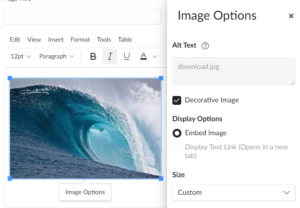
Adding an “Alt” text to a decorative image involves accessing the course page containing the image and specifying that the image is purely decorative, conveying no essential information. After navigating to the Canvas page and entering the editing mode, identify the decorative image and select it. If there’s an option for “Alt” text or “Image Description,” utilize this field to explicitly mention that the image serves a decorative purpose.
In case Canvas lacks a specific “Alt” text field for decorative images, consider adding a note in the caption or description fields clarifying that the image is solely decorative and does not convey crucial information.
- Adding Alt Text to Images in MS Word
- Morris, K. k., Frechette, C. f., Dukes III, L. l., Stowell, N. n., Topping, N. n., & Brodosi, D. B. (2016). Closed Captioning Matters: Examining the Value of Closed Captions for All Students. Journal of Postsecondary Education & Disability, 29(3), 231-238.
- SUNY Electronic & Information Technology (EIT) Accessibility Committee Final Report and Recommendations MAY 2019
- SUNY Electronic and Information Technology (EIT) Accessibility Policy
- From Web Content Accessibility Guidelines (WCAG) 2.0